How to Download Your Minecraft World and Upload It to a Server Safely
How to Download Your Minecraft World and Upload It to a Server Safely
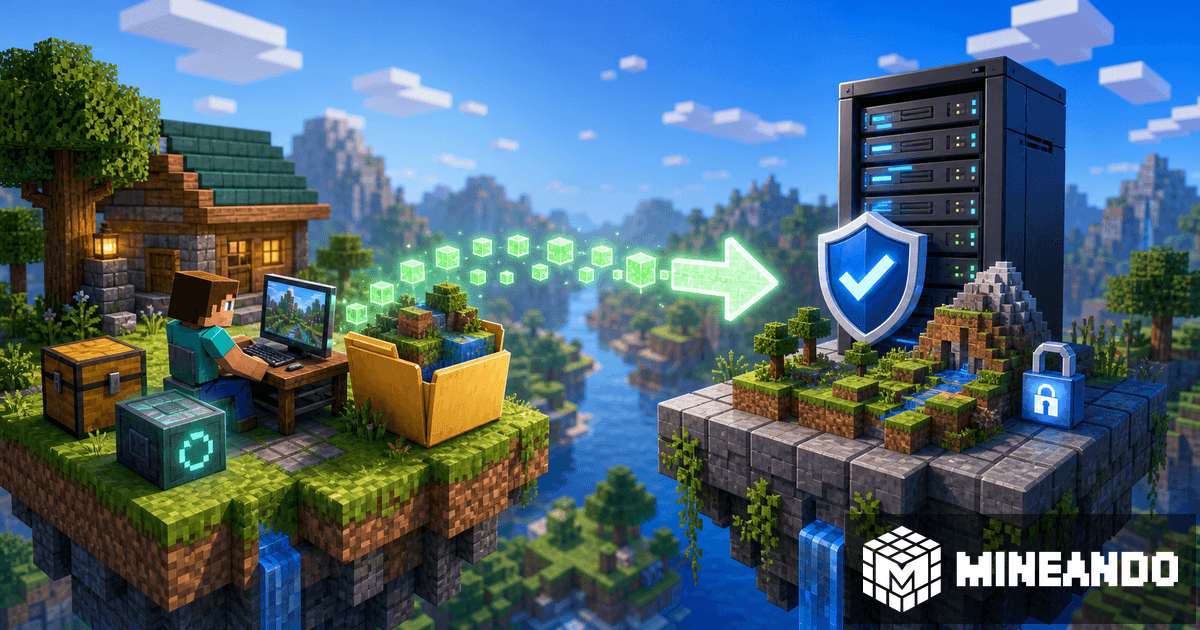
If you already have a Minecraft world with houses, farms, villages, or a base that took weeks to build, switching servers can feel risky. The good news is that you can download the world, make a backup, and upload it to a new server without starting from zero.
The key is not improvising. Before touching files, stop the server, save a copy, and make sure you have the right world folder.
What a Minecraft world really is
A world is not one single file. It is usually a folder with regions, player data, dimensions, inventories, and settings. In Java Edition, it often includes files like level.dat and folders like region, playerdata, DIM-1, or DIM1.
If you use mods or datapacks, there may be extra folders too. That is why you should not copy only one piece. You need the full world folder.
Step 1: make a backup before moving anything
Before downloading or uploading files, create a backup. If the world is on your PC, duplicate the folder. If it is on a host, use the backup option or download the whole world from the file manager.
Do not delete the old world until you have tested the new server. It sounds obvious, but this is the mistake that hurts most.
Step 2: download the correct world
In singleplayer, worlds are usually inside Minecraft’s saves folder. Each world is one folder with its own name.
On a server, the world may be called world, world_nether, and world_the_end, or it may use a custom name. If you are coming from Aternos or another host, look for the world download option or access the server files.
If your server separates the Nether and End into different folders, download all of them. If you only move the Overworld, you can lose progress from other dimensions.
Step 3: prepare the new server
Create the server on Mineando with the same version or a compatible one. If your world uses mods, install the same loader: Forge, NeoForge, or Fabric, depending on the world.
If it was a Paper server with plugins, install the essentials first and upload the world after that. Version compatibility matters: opening an old world in a newer version can update it, but going backward later is not always safe.
Step 4: upload the world folder
With the server turned off, upload the world folder through the file manager or SFTP. Then check server.properties and make sure level-name points to the correct folder name.
For example, if you upload a folder called MySMP, the setting should be:
level-name=MySMP
Save, restart the server, and join to inspect it.
Step 5: check before inviting everyone
Before sharing the IP with the whole group, verify:
- you spawn in the right place;
- your builds are where they should be;
- Nether and End load correctly;
- inventories and beds still work;
- plugins or mods do not show errors;
- the server did not generate a fresh world by mistake.
If something fails, stop the server and check folder names, version, and configuration. Do not keep playing on top of a broken import.
Migrating from Aternos
If you are coming from Aternos, download the world from its panel and save it locally. Then create your server on Mineando, upload the world, and verify the version. You can also read our guide on uploading a personal world to Mineando for a migration-focused walkthrough.
Conclusion
Changing servers does not mean starting over. If you download the right folder, keep backups, and test before inviting everyone, you can move your world safely.
On Mineando, you can upload your world, adjust the version, and play with friends without port forwarding or leaving your PC on.