How to Move an Aternos World to Mineando Without Losing Progress
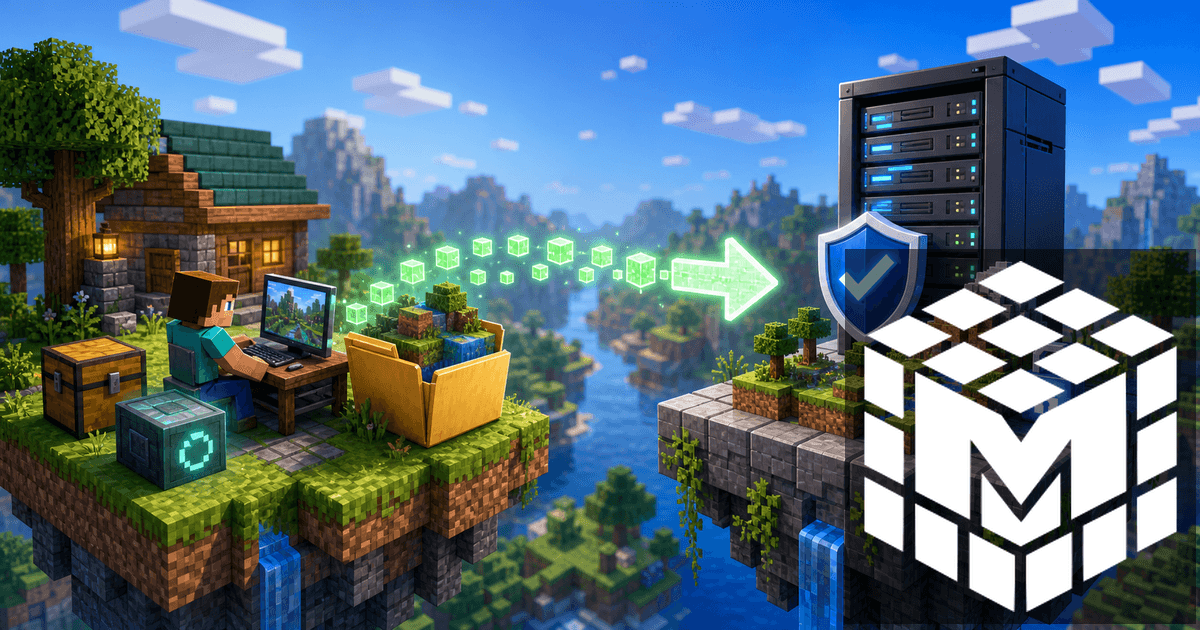
Moving away from Aternos does not mean starting again. If your group already has a base, farms, storage, or late-game progress, the goal is to download the right world, check the files, and upload it to the new server carefully.
The basic flow is simple: stop the Aternos server, download the world, create a compatible Mineando server, upload the world folder, then test before inviting everyone back.
Before you download
Write down the original server details first:
- Minecraft version;
- server software, such as Vanilla, Paper, Forge, or Fabric;
- plugin or mod list;
- exact world folder name;
- whether Nether and End folders are separate;
- whitelist, operator, and permission setup.
Changing version, software, and host at the same time makes troubleshooting harder. Copy the server as closely as possible first, then optimize once the world is running.
Download the Aternos world
In Aternos, open the world section and download the active world. Save the ZIP locally and extract it so you can confirm it contains files like level.dat, region, playerdata, and any Nether or End folders.
If your server used plugins with their own data, also check whether you need plugin folders. The world stores blocks and player data, but some plugins store homes, claims, or permissions separately.
Create the Mineando server
Create a server on Mineando with the same major Minecraft version. If the Aternos server used Paper, start with Paper. If it used Forge or Fabric, keep the same loader and modpack where possible.
Start the server once so basic files are created, then stop it. Upload the world folder through the file panel. If the world folder name differs, update level-name in server.properties or rename the folder to match.
What to test before inviting friends
Join with one account and check:
- you spawn in the expected place;
- builds and chests are intact;
- Nether and End load correctly;
- plugins or mods do not show major errors;
- whitelist and operators behave as expected.
If performance feels tight, the world may need more RAM or cleaner settings. Our Minecraft RAM guide helps you choose a plan for larger worlds.
Conclusion
A good migration preserves the world first and improves the setup second. Download your Aternos world, upload it to Mineando with a matching version, and test it before opening the server to the group.
If you are still comparing options, read our Aternos alternative guide to decide when moving to hourly hosting makes sense.