How to upload your Minecraft world to another server
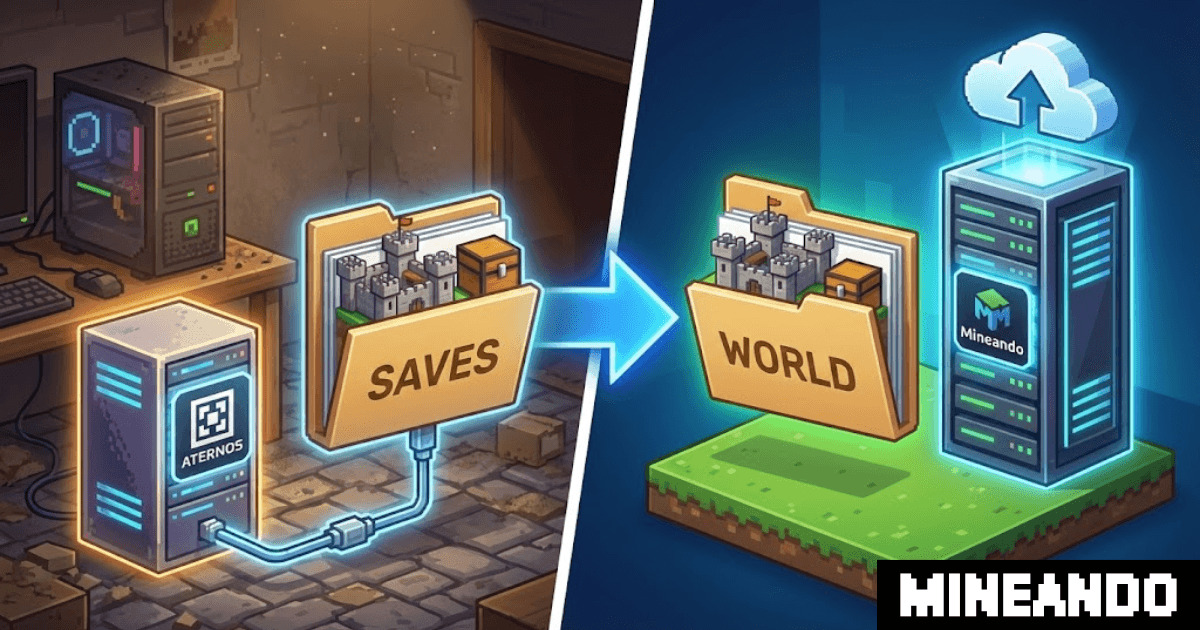
To upload an existing Minecraft world to another server, work from a backup, match the source software and test the result privately. Keep the original until you have checked the destination and proved you can restore it. Deleting the only working copy is never a useful first step.
This guide covers Minecraft Java Edition. A Bedrock world needs a separate migration or conversion process. Mineando's former self-service panel has closed, so the steps below use your destination host's file tools rather than the retired panel.
Record what you are moving
Write down the Minecraft version, server software, loader and modpack version if applicable. Record installed plugins, enabled datapacks and additional worlds. Start with the same working combination at the destination. Treat a software upgrade as a separate change after the move succeeds.
For a singleplayer world, open its save folder through your launcher's game directory. Custom launcher profiles can use different directories. For a hosted server, use the host's documented export procedure and check what the export contains. A world download may omit plugin settings or data stored in an external database.
Make a complete, closed-server backup
- Stop the source server, or exit the singleplayer world and close the game.
- Copy every required world and dimension, plus configuration and plugin or mod data needed to reproduce the server.
- Keep the backup outside the server you are changing. Check that the archive opens and contains the expected files.
- Leave the original untouched while you test a separate copy.
Do not assume every Java server uses the same dimension folders. Paper's layout changed in version 26.1. Check the Paper migration guide for the source and target versions before moving Nether or End data. Paper cannot load content added by Fabric or Forge mods.
Prepare the destination while it is stopped
Install the matching server software and required dependencies first. If you started it to generate configuration files, stop it fully before uploading the world. Back up any destination data you want to keep.
Upload and extract your working copy using the host's supported file manager or transfer method. Check the resulting structure. An extra wrapper directory can leave the real save one level deeper than intended.
For a conventional Java setup, the level-name setting in server.properties selects the main world. If it is world, verify that the intended world is in the corresponding location. Multiworld plugins may have their own configuration. Do not rearrange dimension folders based on a tutorial for a different server version.
Avoid combining a host move with changes to account authentication or proxy identity settings. Player data may be associated with different identifiers after such a change. Record the existing configuration and investigate missing inventories before opening the server to players.
Validate more than the spawn
Restrict access to the test server. Join with an existing player's account and check:
- Known builds and coordinates in the main world.
- Nether and End builds, portals and return travel.
- Inventory, ender chest and relevant progress.
- Modded blocks, containers and dimensions where applicable.
- Permissions, protection rules and plugin data you need to preserve.
- Console errors during startup, joining and saving.
Singleplayer owner data may need separate attention when moving to a dedicated server. Compare it with the backup before changing player files. Restart the test server and check that your test changes persist.
If you see a fresh world or missing items, stop and investigate the selected folder, version and dependencies. Keep the backup intact. Do not repeatedly open the same working copy with different or older versions to see whether one fixes it.
Switch over with a rollback plan
A rehearsal copy will be out of date if players keep using the source. Agree a maintenance window, stop the source and take a final backup. Repeat the tested transfer and checks before sharing the new address.
If the move fails, stop the destination and restore the known-good source setup. Progress made only on the destination will not automatically appear there. Decide how to handle that before allowing play, and avoid running two writable copies for the same group.
For a move that needs technical help, contact Mineando with the source and target software, world size and acceptable downtime. Agree the migration scope and verification checks before starting.