GeyserMC Setup Guide: Java–Bedrock Crossplay
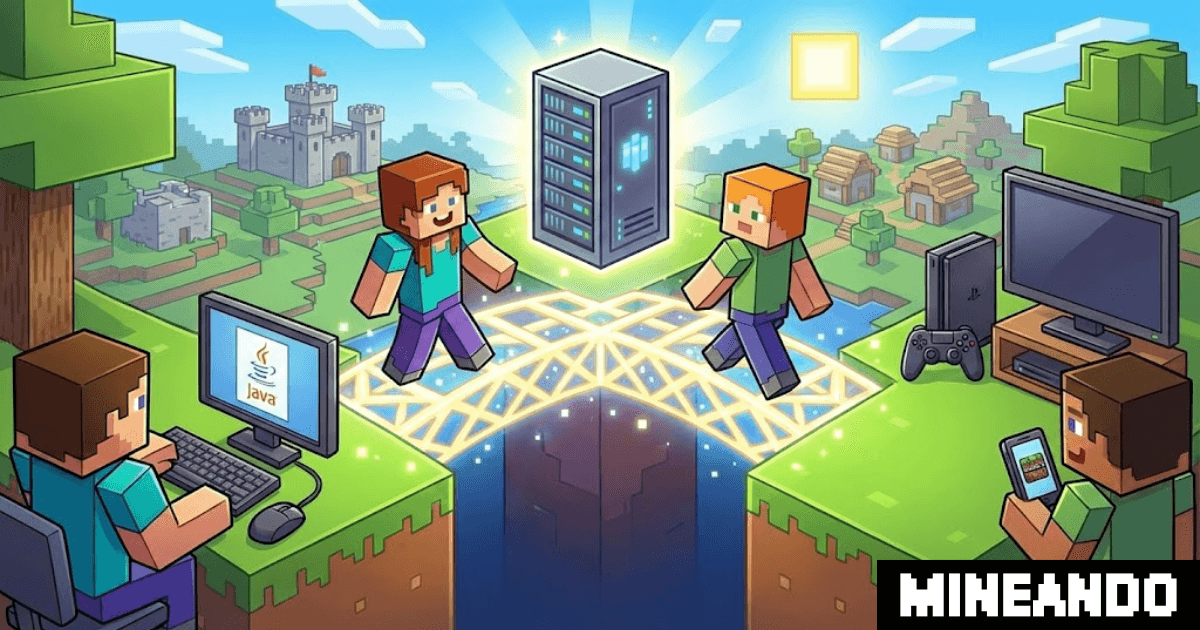
This guide is for server owners who have chosen Java–Bedrock crossplay and want to set it up with GeyserMC, Floodgate, and Paper.
If you are still deciding whether the two editions can share a server, start with our plain-English Java and Bedrock crossplay answer. If your question is specifically about Realms, read whether Java and Bedrock can play together on Realms. This page focuses on the practical server setup.
What you need
For a typical friend server, prepare:
- a Java server running Paper or another plugin-compatible platform;
- Geyser-Spigot to bridge Bedrock connections to Java;
- Floodgate-Spigot if Bedrock players should join without paid Java accounts;
- an available UDP port for Bedrock connections;
- Minecraft versions supported by the current Geyser build.
On Mineando, Java players use the normal server address. Bedrock players use the Bedrock address and port shown for the Geyser setup.
What GeyserMC does
GeyserMC listens for Minecraft Bedrock connections and translates their traffic for a Java server. Java players connect normally, while mobile, console, and Windows Bedrock players enter through Geyser and share the same world.
Java and Bedrock remain different editions, so menus, animations, combat details, redstone behavior, skins, and some plugin interactions can differ. Geyser provides compatibility; it does not make the two clients identical.
Where Floodgate fits
Floodgate is optional, but it is useful for most mixed friend groups. It lets Bedrock players join with their Bedrock accounts without needing paid Java Edition accounts.
Without Floodgate, Geyser can use Java account authentication instead. With Floodgate, the server handles Bedrock identity separately and can optionally support account linking. Read our Floodgate plugin vs GeyserMC comparison before choosing the authentication mode.
Set up GeyserMC and Floodgate on Paper
- Create or switch the server to Paper.
- Install the current Geyser-Spigot plugin from the server panel or the official Geyser download page.
- Install Floodgate-Spigot if Bedrock players should join without paid Java accounts.
- Restart once so the plugins create their configuration files.
- Confirm that Geyser uses Floodgate authentication when Floodgate is installed.
- Find the Bedrock UDP port assigned to the server. Do not assume it is the Java port or the default Bedrock port; use the value provided by the host.
- Restart again after configuration changes.
- Test with one Java account and one Bedrock account before sharing the server with everyone.
Use official Geyser and Floodgate downloads rather than jars reuploaded by third-party sites. Geyser updates its supported versions as Minecraft changes, so check current compatibility if crossplay stops working immediately after a game update.
Give players the correct connection details
Java players need the normal Java server address. Bedrock players need the Bedrock address and UDP port. Write the two instructions separately so nobody copies the wrong port.
Mobile and Windows Bedrock players can usually add an external server directly. Switch, PlayStation, and Xbox manage external servers differently, so console players may need additional client-side steps. Test with one console player before inviting the entire group.
For address and port troubleshooting, use our GeyserMC port guide.
Test the setup safely
Before opening the server, check:
- Java and Bedrock players reach the same world;
- Bedrock usernames are recognizable and do not conflict with Java names;
- whitelist, permissions, and operator access behave correctly;
- skins and account linking work as expected if you use them;
- the server remains stable while both editions are connected.
For a public server, economy server, or network, test Floodgate identity handling carefully before launch. Do not switch the whole Java server to offline mode as a shortcut. If you also support non-premium Java accounts, read the offline-mode security guide first.
Performance and plan size
Geyser translates traffic in real time, so leave some performance headroom. A small friend group is usually straightforward, but heavy plugins, web maps, large farms, modpacks, and rapid exploration can increase the load.
Our Minecraft RAM guide explains how to choose a sensible starting plan. Increase resources only when the world and plugin load justify it.
Common problems
If Bedrock cannot connect, check the UDP port, Geyser configuration, firewall or hosting allocation, and current version support. If Bedrock joins but names, skins, or permissions look wrong, review Floodgate and the plugins that manage identity or permissions.
For a focused checklist, follow the Bedrock-to-Java troubleshooting guide.
Realms is a different setup
Java Realms and Bedrock Realms remain separate services. GeyserMC applies to a Java server you control; it does not merge the two Realm types. Use the dedicated Realms crossplay explanation for that question.
Conclusion
A practical Java–Bedrock server uses Paper, GeyserMC, an available Bedrock UDP port, and—when Bedrock players should not need paid Java accounts—Floodgate. Configure one piece at a time, test with both editions, and give each player the correct address and port.